
Spool#
The Honey Badger robot can be equipped with an optical-fiber spool that allows the operator to establish a wired connection to the robot. This solution is useful in long-range environments where wireless communication is impossible due to interference or limited Wi-Fi range.
Setup#
Communication with the spool driver is established through the ROS 2 spool_node. Powering up the platform initializes the spool driver, which in turn automatically starts the node.
Spool remote controller interface#
Warning
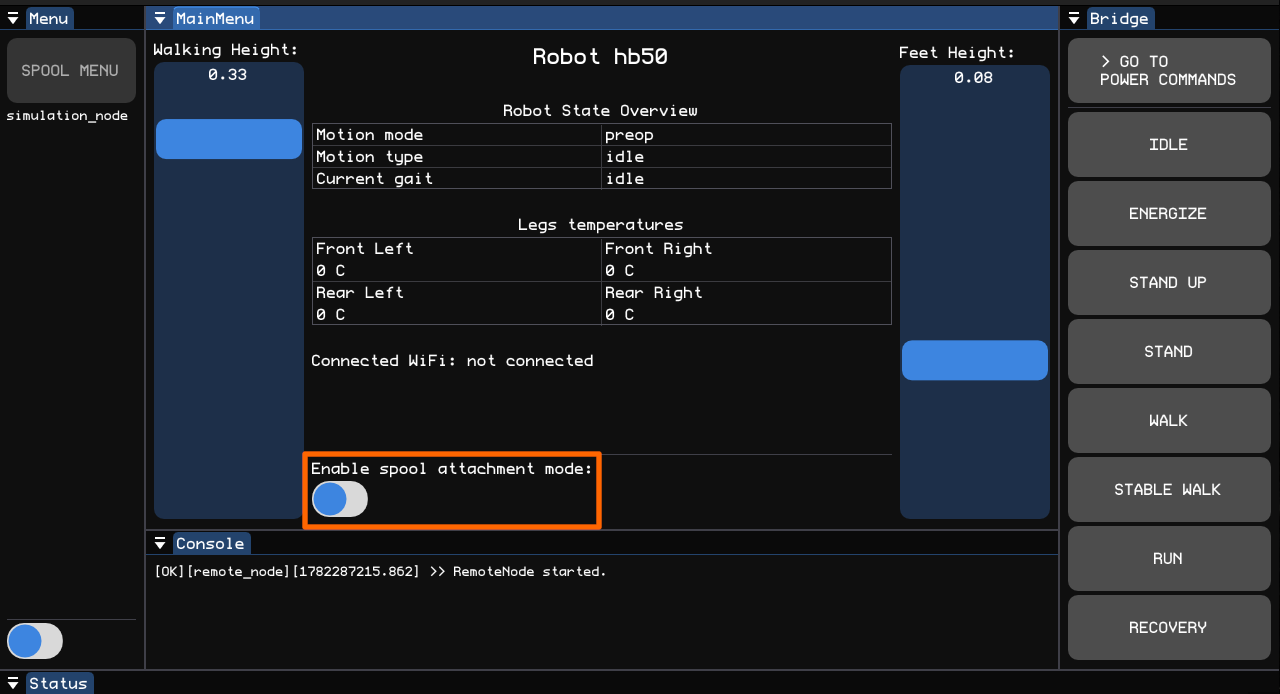
The spool attachment is disabled by default. Always verify the spool is enabled before operating the robot with the spool attached.
If the spool is not enabled and the robot moves, the spool or fiber can be damaged. Enabling the spool also updates the robot motion controller with the spool mass and inertial parameters.
Make sure the Enable spool attachment mode toggle shown below is active before using spool functions.
Spool control has a separate interface built into the remote controller. It allows the operator to handle the spool safely. To begin, the operator should press the SPOOL MENU button (number 1) to open the spool control view.

Number |
Name |
Function |
|---|---|---|
1 |
|
Opens menu containing whole functionality of spool. |
2 |
|
Enables spool motors. |
3 |
|
Disables spool motors. |
4 |
|
Sets the current position of unwound optical fiber as the zero point. |
5 |
|
Enables/Disables manual mode. |
6 |
|
|
7 |
|
|
Operating mode#
The spool platform can operate in two separate modes: automatic and manual.
Automatic mode#
Automatic mode is used for synchronous operation with the Honey Badger robot. In this mode, the spool platform receives velocity values from the hb50_commons/msg/RobotState topic, which publishes the robot’s estimated state and actual linear velocity.
Manual mode#
Manual mode allows the operator to directly add a velocity command to the spool while the robot is operating. The manual command is added to the automatic robot velocity, so the resulting spool velocity is the sum of both contributions.
To enable manual mode with the remote controller, the user should unlock the safety switch (button number 5).
By default, the system is operated using the remote controller. However, if the operator prefers manual mode via the terminal, they should publish a safe velocity to the /hb50/payload/spool_unroll_speed topic.
Example of use:
ros2 topic pub /hb50/payload/spool_unroll_speed std_msgs/msg/Float32 "{data: 0.1}"
The command unwinds the spool at a linear velocity of 0.1 m/s in addition to the current robot velocity.
Warning
Passing a negative float value winds the optical fiber. Always ensure there is enough spare fiber available before winding.
Do not allow the fiber to become taut or caught on obstacles while the spool is active.
The spool velocity from automatic mode and the manual velocity command are summed together. The total spool velocity is limited to a maximum of 1 m/s, so if the combined robot and manual velocities exceed 1 m/s, the spool speed is capped at 1 m/s.
Spool topics#
spool_node subscribes to the following topics:
Topic |
Message Type |
QoS |
Publish Rate |
|---|---|---|---|
|
|
Reliable |
10 hz |
|
mabRT |
10 hz |
And publishes to the topics:
Topic |
Message Type |
QoS |
Publish Rate |
|---|---|---|---|
|
|
Reliable |
10 hz |
Note
For precise definition of QoS check: Quality of Service.
Spool services#
Spool uses a single service to enable different features.
Service |
Interface Type |
QoS |
|---|---|---|
|
|
Reliable |
The interface type defined as hb50_commons::srv::EnableFeature has the following parameters:
Type |
Name of parameter |
Function |
|---|---|---|
|
|
Describes function that should be applied. |
|
|
Represents logic value of 0 or 1 that stands for disabling or enabling feature. |
|
|
Informs about result of applied service. |
The operator has two feature names available for calibration or safety control. The argument is passed as a string and can be one of the following:
|
Function |
|---|---|
|
Sets the current position of unwound optical fiber as the zero point. |
|
If |